TWS hotkeys to sell half and scale out of a position
By Scalpel Team. , updated . 8 min read.
In short
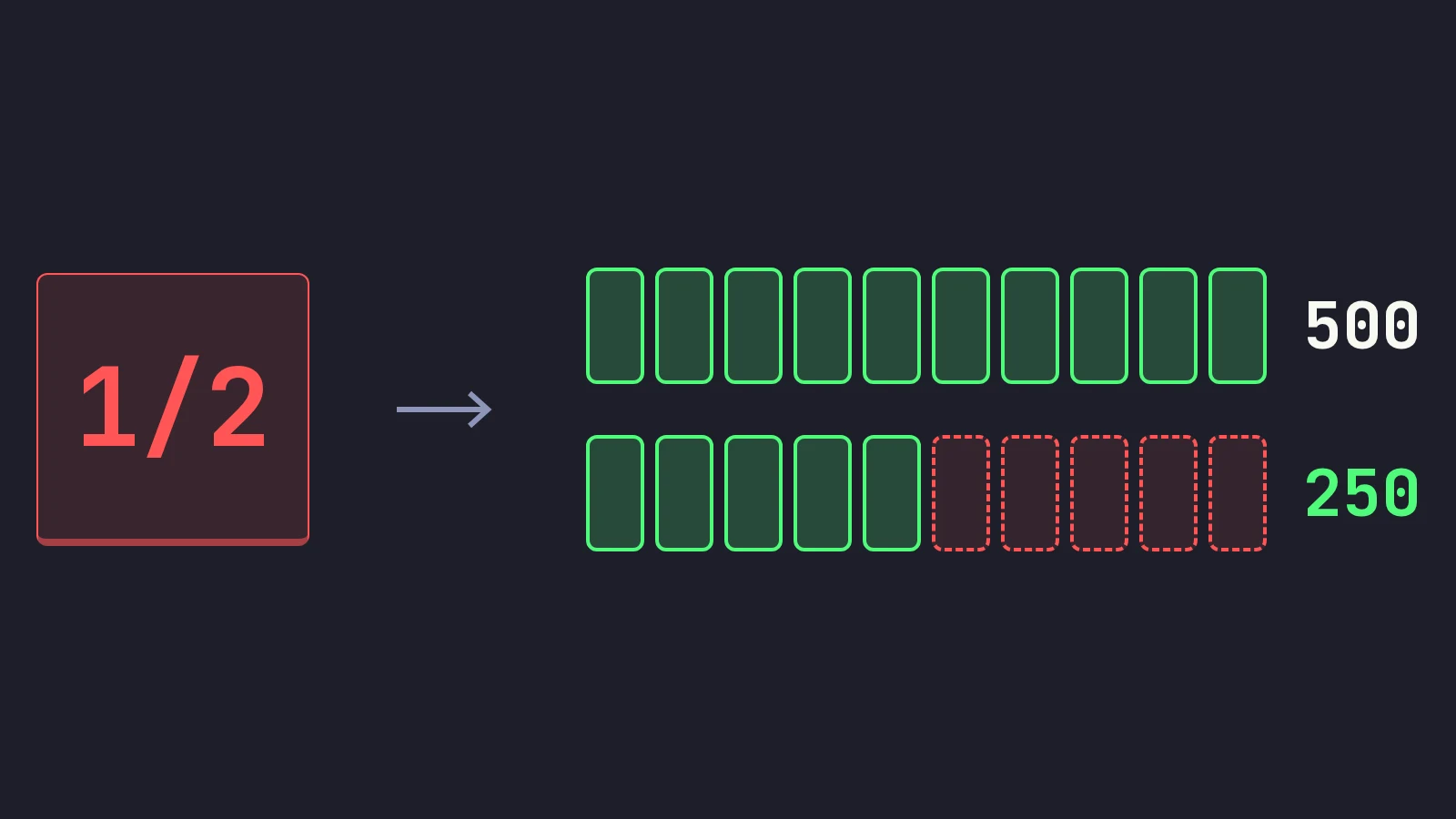
TWS has no sell half position hotkey that sells exactly half of the selected stock and transmits at once. You have three options. A Sell hotkey with an Absolute size equal to half your standard buy is one keypress, but it goes stale when your size changes. A Close Portion of Positions hotkey set to 50% is a true percentage, but it opens a pane and asks you to confirm, and it works across your positions, not just one stock. Close Selected Positions in the Trade menu sends 50% of each selected position at once, but it is a menu, not a key.
Selling half into strength is the most common scale-out in momentum trading: you get paid for being right, and the rest of the position rides with less at stake. It should be one key. In TWS it takes a little work, because the hotkey that sells by percentage was built for closing portfolios, not for scalping one stock, and the hotkey that sells in one press does not know what you hold.
This post sets up each option with exact settings, shows where each one breaks, works through odd share counts and commissions, and ends with a simple scale-out plan. Checked against IBKR's guides and lessons on October 22, 2026. Scalpel is independent and not affiliated with or endorsed by Interactive Brokers.
TWS sell half position hotkey: the three options
| Option | Keypresses | Sells | Transmits | Breaks when |
|---|---|---|---|---|
| Sell hotkey, Size Absolute | One | A fixed share count | At once, if you tick it | Your entry size changes, or you are partly filled |
| Close Portion of Positions at 50% | Key, then OK, Proceed and Yes | 50% of the matching positions | After you confirm | You hold more than one stock, or you need speed |
| Close Selected Positions (Trade menu) | Menu clicks | 50% of each selected position | At once | You want a key, not a menu |
Most scalpers on TWS end up with the first one and live with its limits. Here is how to set up each.
Option 1: a Sell hotkey with a fixed size
This is the one-press version. With a 500-share standard buy, a 250-share sell is half.
Open the Hotkeys page
File > Global Configuration > Hotkeys in Mosaic, or Edit > Global Configuration > Hotkeys in Classic TWS.
Create a Sell shortcut
Select Sell under Create Orders and click Create Shortcut. On the Shortcuts tab click Record and press your key, for example Ctrl+D. TWS accepts any single key, or Ctrl or Shift with one of the 26 letters (IBKR: TWS hot keys).
Set the order on the Customize tab
Order Type LMT, limit price Bid with an offset of -0.05, Size Absolute with 250 shares, time in force DAY. Pricing off the bid minus a few cents makes it a marketable limit: it sells into the buyers who are there now, but never more than 5 cents under the bid you saw. How big that offset should be is covered in TWS hotkey limit price offsets.
Tick instant transmit only after testing
Transmit the order instantaneously at the bottom of the Customize tab sends the order on the keypress. A key with it ticked shows an asterisk in the list. Leave it off in your first paper sessions so you can read each order before it goes.
Apply and test on paper
Click Apply and OK; the key works at once. In a paper login, buy 500 of a liquid stock, select its row, press the key, and check that 250 remain.
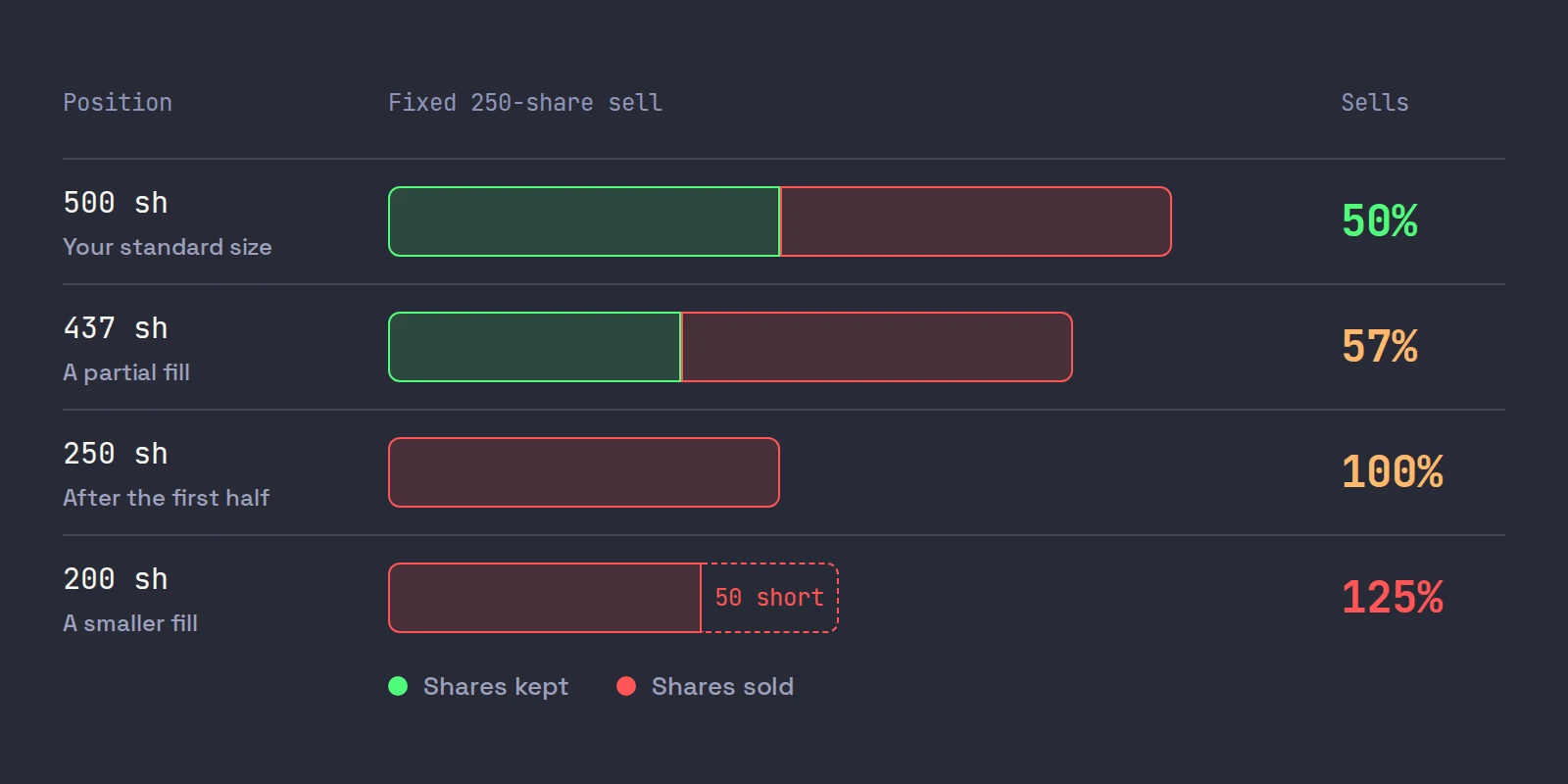
The catch is that "250" is a number, not "half". It is only half when your position is exactly 500.
Option 2: Close Portion of Positions at 50%
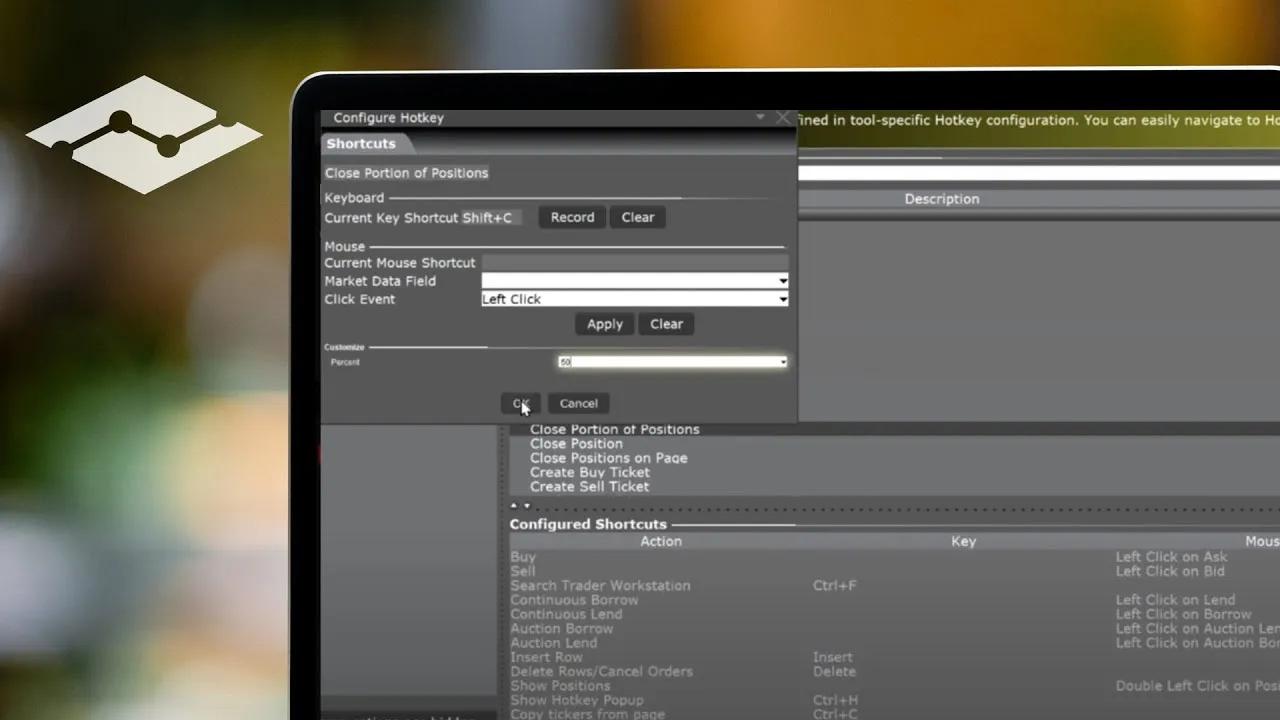
This is TWS's real percentage tool. IBKR's lesson on configuring TWS hotkeys sets one up step by step:
- On the Hotkeys page, select Close Portion of Positions from Possible Actions and click Create Shortcut.
- Record the key, then use the customization to set it to close 50%.
- Click Apply and OK.
When you press it, a pane opens to choose the asset class (all, or one) and which positions (all, or only long or only short) and the order type. Click OK, then Proceed on a warning, then Yes on a message that orders above your precautionary settings will not be warned about.
Three things make it a poor scalping key:
- It is not one press. IBKR staff, answering complaints on that lesson's page, point traders to turning off the order confirmation, but the pane and its warning are part of the action.
- It works on positions, not on the selected stock. The pane filters by asset class and by long or short. Holding two long stocks, expect a 50% close to halve both. Test it in paper with two positions before you rely on it.
- It skips your size warnings. That is IBKR telling you so in the last dialog.
It is a good end-of-day or emergency tool. It is not a fast scale-out key.
Option 3: Close Selected Positions from the Trade menu
IBKR's Classic TWS Trade menu guide lists Close Selected Positions, which submits closing orders for the positions you have selected: 50% of each, 100% of each, or a percentage you enter, and IBKR notes the orders are transmitted instantaneously. Select the position's row in your portfolio, open the menu and pick 50%. It is a true half of what you hold, sent without a dialog, but it is a few clicks, which is what you were trying to avoid.
Odd share counts and rounding
Half of 500 is 250. Half of 333 is 166.5, and you cannot sell half a share in this workflow. IBKR's guides do not say which way Close Portion of Positions or Close Selected Positions rounds an odd count, so check it on paper: buy 333 shares and close 50%. Two habits avoid the question:
- Keep standard sizes even. 400, 500, 1,000. Your fixed sell key then really is half.
- Expect partial fills. A 500-share buy into a thin book can fill 437 and rest the rest. Now your 250 key sells 57% of the position, and a second press would oversell. Cancel the unfilled part of the buy first, then decide. Our post on partial fills covers why they happen.
What a scale-out costs in commissions
Each half is its own order, so per-order minimums matter more than per-share rates. IBKR Pro Fixed is $0.005 a share with a $1.00 minimum per order and a cap of 1% of trade value; Tiered starts at $0.0035 a share with a $0.35 minimum, plus exchange and clearing fees (IBKR stock commissions, checked on October 22, 2026).
| Position, sold at 5.70 | Exit in one order (Fixed) | Exit in two halves (Fixed) |
|---|---|---|
| 500 shares | $2.50 | $1.25 + $1.25 = $2.50 |
| 200 shares | $1.00 | $1.00 + $1.00 = $2.00 |
| 100 shares | $1.00 | $1.00 + $1.00 = $2.00 |
On a big enough position, splitting the exit is free on Fixed. On a small one, the minimum makes each half cost a full dollar. The SEC's transaction fee on sales does not care how you split: it is charged on the dollar value sold, at $20.60 per million dollars since April 4, 2026 (SEC fee rate advisory). Selling 250 shares at 5.70 ($1,425) costs about 3 cents in SEC fee either way.
An IBKR scale-out plan, worked through
A scale-out key is only useful with a plan for when to press it. A simple one, on a fictional ABCD:
- Entry: buy 500 at 5.50, stop at 5.30. Risk is 20 cents a share, $100 in total. That 20 cents is 1R (R multiples).
- First target, +1R: at 5.70, sell half. 250 shares x 0.20 = +$50.
- Protect the rest: move the stop on the remaining 250 to your entry, 5.50. Short of a gap, the trade can no longer lose money before fees.
- The runner: sell the rest at a target such as +2R (5.90, another +$100), on a break of the prior candle's low, or at your breakeven stop for $0.
Worst case after the first sale is +$50 minus fees; best case in this plan, +$150. The plan is decided before the entry, and that matters. In a classic study of 10,000 brokerage accounts, Odean (1998, Journal of Finance) found investors realized 14.8% of their available gains but only 9.8% of their available losses: people sell winners too soon and sit in losers. Those were not day traders, but the instinct is the same one. A scale-out rule written down in advance, with a stop that does not move down, is a defense against it. Moving the stop to entry has its own trade-offs, covered in when to move your stop to breakeven.
In TWS that plan is several separate actions: a sell key, then a modification to the stop order for the new size and price. If the stop was attached to your buy as a bracket, it still covers the original 500 shares after you sell half. Change its quantity, or a stop fill could sell more than you hold. More on that in attaching a stop loss with a TWS hotkey.
The five-minute IBKR lesson shows the Close Portion of Positions hotkey being created and used, including each dialog it raises, so you can judge it before you build it:
Where Scalpel fits
Scalpel is a keyboard-first desktop cockpit for your own IBKR account, connected through TWS or IB Gateway with the API enabled. Scaling out is built into its hotkeys, and every sell is a fraction of what you actually hold on the focused desk, worked out the moment you press:
| Key | Sells | Priced at |
|---|---|---|
| Ctrl+X | Half, rounded down to whole shares | Bid minus your sell offset (10 cents by default) |
| Ctrl+C | A quarter, rounded down | Bid minus your sell offset |
| Ctrl+A | Half, resting at the ask | The ask, waiting for a buyer |
| Ctrl+S | Half, resting at the mid | Halfway between bid and ask |
| Ctrl+Z | The whole position | Bid minus your sell offset |
Half of 333 is 166; a quarter of 166 is 41. No sell can exceed what you hold, minus shares a working sell already offers, because Scalpel is long only, so a double press never opens a short. After the sale, the stop and take-profit keep guarding the shares that are left, and B moves the stop to your entry (breakeven and trailing stops).
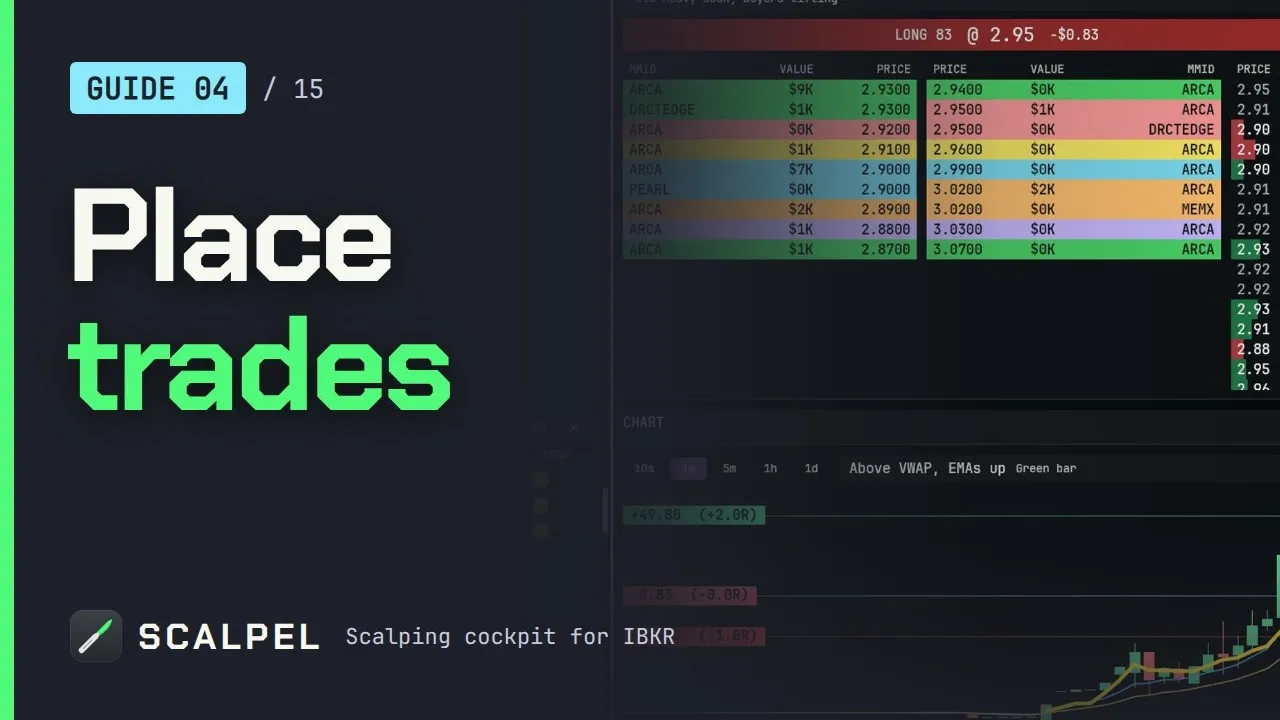
The full set of exits is in scale out and flatten, and our guide video shows them on a live-looking desk:
Two trade-offs: Scalpel trades long US stocks only, and its stops are watched by the app, not resting at IBKR, so they only work while it runs with a live feed. If you short or trade options, TWS's tools are the ones you need. The rest of the TWS key set is in our guide to TWS hotkeys for day trading, and the platform-neutral version in day trading hotkeys.
Trading carries a significant risk of loss. Nothing here is financial advice.
Questions
- How do I sell half my position with a TWS hotkey?
- Create a Sell hotkey with Size set to Absolute and half your standard share count, priced at the bid minus a few cents, and tick Transmit the order instantaneously once tested. It is one press, but it sells a fixed number, so it is only half when your position is your standard size.
- Can TWS close a percentage of a position with one key?
- Close Portion of Positions can close 50%, but it opens a pane, a warning and a final confirmation, and it works across positions filtered by asset class and long or short, not only the selected stock.
- How do I close half a position in TWS without a hotkey?
- Select the position's row and use Close Selected Positions in the Trade menu, choosing 50%. IBKR says those orders are transmitted at once.
- Can a sell half hotkey make me short?
- Yes, in a margin account. A Sell key with a fixed size does not know what you hold, so pressing it twice, or after a partial fill, can sell more shares than you own.
- Does scaling out cost more in commissions at IBKR?
- Sometimes. Each partial sale is a separate order, and on the Fixed plan each order has a $1.00 minimum, so two halves of a 200-share position cost $2.00 instead of $1.00. On larger positions the per-share rate dominates and splitting costs nothing extra.
Related guides
Guide 4.5Scale out and flattenSell half, a quarter or the whole position at the bid, ask or mid, and flatten everything with Esc or Flatten All. What each exit does in SIM and in LIVE.Guide 4.3Hotkeys: the defaults and how to change themEvery Scalpel hotkey and its default: buys, scale-outs, breakeven, trailing and cancel, each with a spoken confirmation. Esc's rules and how to rebind.Guide 5.3Breakeven and trailing stopsMove the stop to breakeven with one key, trail it by your stop, cents, percent or 1-minute candle lows, and make both start by themselves at a set R.
Keep reading
- TWS hotkeys for day trading: a setup that actually worksSet up TWS hotkeys for day trading: where IBKR hotkeys live, the presets they need, a five-key scalping set with exact settings, and a printable cheat sheet.
- IBKR hotkeys not working? The causes and how to fix each oneIBKR hotkeys not working? Go through the checklist: row not selected, no instant transmit, popups, outside RTH unset, unmarketable prices. Exact TWS fixes.
- Day trading hotkeys: the keys every scalper should set upDay trading hotkeys that work: the five keys every scalper needs, how to price and size each one, where to put them on the keyboard, and drills to learn.
Practice in SIM, against the live book.A lifetime license, every update included, with a 7-day refund guarantee.Ask in DiscordGet Scalpel