TWS hotkey with a stop loss: brackets, presets and the traps
By Scalpel Team. , updated . 8 min read.
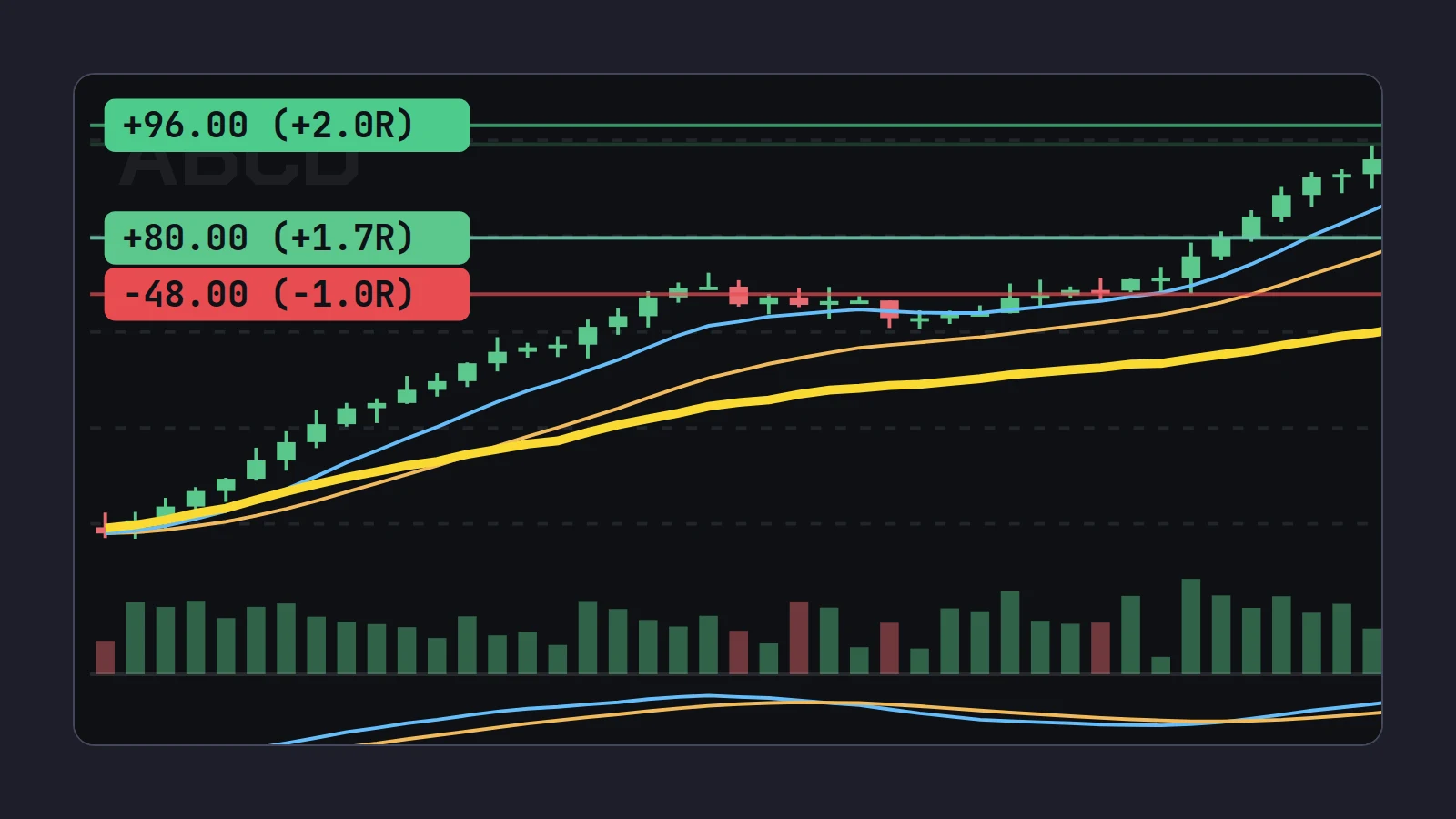
In short
Yes, you can build a TWS hotkey with a stop loss attached to your entry. On a Buy hotkey's Customize tab, tick Add Simple Bracket under Attached Orders, then set the profit-taker's limit (priced off the bid, ask or last plus an offset) and the stop type and stop price offset. You can also attach a stop to every order through Presets > Stock, or add one to a selected order with the Add Auto Stop Order hotkey. Know the limits: the stop's price is set from a quote or your limit, not your fill; it is a stop order at IBKR that does not trigger outside regular hours unless you allow it, and a plain stop cannot work in the pre-market at all.
Entering with a hotkey and then typing a stop by hand is the slowest part of many TWS trades. For a few seconds after the fill you are unprotected, and those are the seconds when a small cap is most likely to snap back. Attaching the stop to the entry key closes that gap. It works well in regular hours, and it has three traps that this post walks through: where the stop's price comes from, what happens before 09:30, and what happens when you scale out.
Everything here was checked against IBKR's guides and lessons on October 22, 2026. Scalpel is independent and not affiliated with or endorsed by Interactive Brokers.
Three ways to attach a stop loss in TWS
| Method | Where you set it | What it creates | Good for |
|---|---|---|---|
| Add Simple Bracket on a Buy hotkey | The hotkey's Customize tab | Your buy plus a profit-taking limit and a stop | One key that enters with both exits |
| Attached stop in presets | Global Configuration > Presets > Stock | A stop attached to every stock order you create | A stop on every order, keys or not |
| Add Auto Stop Order hotkey | The Hotkeys page, a separate key | An opposite-side stop on the selected order | Adding a stop to an order you already built |
IBKR's hotkey guide describes the first: "In the Attached Orders area, check Add Simple Bracket", then choose "Bid, Ask, Last or None as the basis for the Limit Price portion of the bracket order", select a stop type and set the stop price and offset (IBKR: assign hot keys). The hotkey action list describes the third: Add Auto Stop Order "attaches an opposite-side stop order to the selected order" (IBKR hotkey actions).
Set up a TWS hotkey with a stop loss
Create a Buy shortcut
Open File > Global Configuration > Hotkeys (Mosaic) or Edit > Global Configuration > Hotkeys (Classic). Select Buy under Create Orders, click Create Shortcut, then Record and press your key.
Set the entry on the Customize tab
Order Type LMT, limit price Ask plus 0.05, size from your presets or an absolute share count. That is a marketable limit: it fills against the offers up to 5 cents over the ask.
Tick Add Simple Bracket
In Attached Orders, tick Add Simple Bracket. The Bracket Orders fields appear.
Set the profit-taker
In Lmt Price (+/- offset), pick the basis (Bid, Ask, Last or None) and the offset. With the ask as the basis and +0.40, a 5.50 ask gives a target at 5.90.
Set the stop
Pick the Stop Type: a plain stop (STP) becomes a market order when triggered; a stop-limit (STP LMT) becomes a limit and needs a Stop Limit price and offset too. Then set the Stop price and offset, for example 0.20 under the ask: 5.30. Check which bases your build offers in the drop-down.
Decide on instant transmit, then test in paper
Transmit the order instantaneously sends all three orders on the keypress. Leave it off at first, press the key in a paper login, and read the three orders TWS builds before you transmit them.
If you would rather have a stop on every stock order, the presets route is in Global Configuration > Presets > Stock. Click All Possible Fields at the top if the attached order sections are hidden. IBKR's preset reference describes the attached stop's Stop Price as a choice to "Select Parent order to create a stop price equal to the price of the parent order +/- a defined offset amount or percent". With an order type of None, no stop is attached.
Where the stop's price comes from
This is the trap that surprises people. The stop's price is worked out when the order is created, from a price TWS knows at that moment: the bid, ask or last you chose, or the parent order's price. It is not worked out from your fill, because there is no fill yet. IBKR's help page on the auto stop says it outright: TWS "calculates the stop election price using the limit price of the parent order plus/minus stop offset amount" (IBKR: attach automatic stop order).
Worked through on a fictional ABCD, 500 shares, ask 5.50:
- Your buy key sends a limit at 5.55 (ask + 0.05). The bracket's stop is at 5.30 (ask - 0.20), the target at 5.90 (ask + 0.40).
- Filled at 5.50: your risk is 0.20 a share, $100 in total. That is the trade you planned.
- Filled at 5.55, because the offers were thin: your risk is 0.25 a share, $125. The stop did not move up with your fill.
- If you had based the stop on the parent's limit price instead, 5.55 - 0.20 = 5.35, the risk at a 5.50 fill would be only 0.15: a tighter stop than you meant.
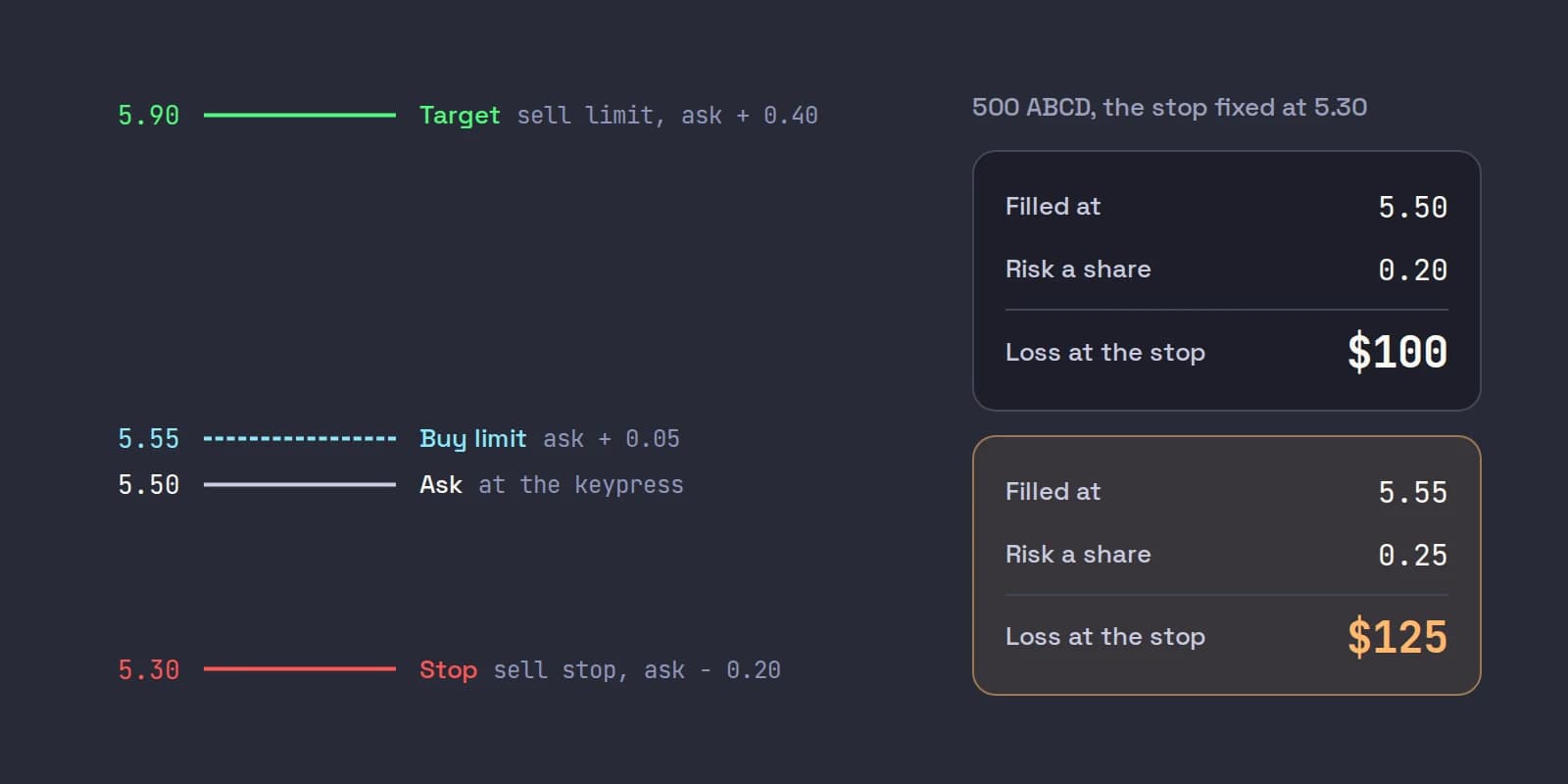
Neither is wrong, but you should know which one you built, because your size depends on it. If you size by risk, work it out from the worst fill your limit allows (5.55 here), not the ask you saw. Our post on TWS hotkey limit price offsets covers how large that gap should be.
How the bracket's two exits cancel each other
A bracket is three orders: the buy, a sell limit above (the profit-taker) and a sell stop below. IBKR's bracket order lesson explains that the two child orders become active when the parent order executes, and that only one of them can be triggered: when one fills, the other is cancelled at once. That is a one-cancels-all (OCA) group, and it is what stops you selling twice. The lesson's video shows a bracket being built in Mosaic and where to find it in the Activity panel:
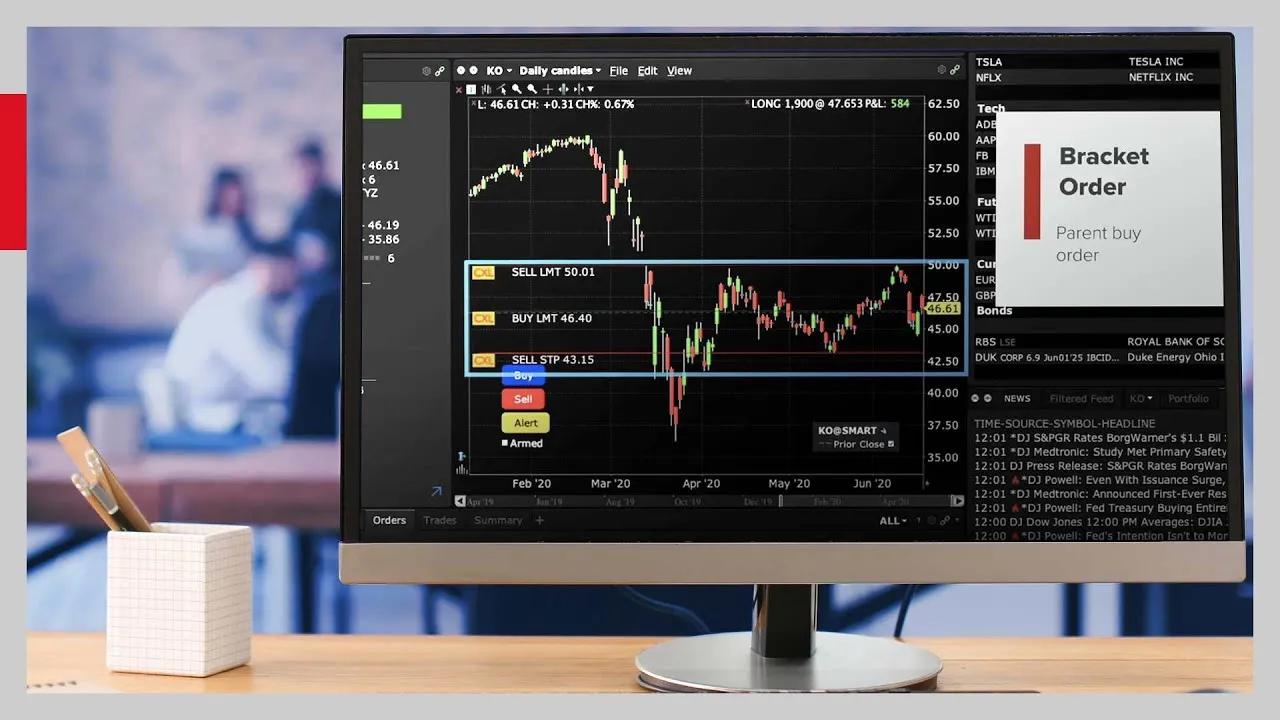
The catch is scaling out. The bracket's children are sized for the whole entry. If you sell half with a separate key, as most scalpers do, TWS does not know that sale belongs to the bracket. The stop and target still offer 500 shares while you hold 250. If the stop then triggers, it can sell 500, and in a margin account the extra 250 opens a short. After any partial exit, change the quantity on the stop and the target, and confirm the behavior in paper with your own build. Our post on TWS hotkeys to sell half covers the scale-out keys themselves.
Why the attached stop fails in the pre-market
US exchanges take limit orders only outside regular hours (09:30 to 16:00 ET). A plain stop sends a market order when it triggers, so it has nothing it can send in the pre-market. And IBKR's preset reference is explicit about the time setting: with Allow order to be activated, triggered or filled outside of regular trading hours unchecked, "stop orders will not trigger outside of regular trading hours" (IBKR preset reference).
So a bracket hotkey pressed at 07:45 gives you an entry, a target that can fill, and a stop that is not protecting you until 09:30. The closest TWS gets is a stop-limit with the outside regular hours box ticked, and in a thin pre-market book price can gap straight through its limit. We cover that case in depth in why your stop did not trigger in the pre-market. IBKR's lesson on trading outside RTH shows where the setting lives.
What a halt does to your stop
In regular hours, small caps get halted. Under the Limit Up-Limit Down plan, most small caps are Tier 2 stocks, whose price bands sit 10% either side of a recent reference price above $3.00 and 20% between $0.75 and $3.00. If the best bid sits at the upper band, or the best offer at the lower band, for 15 seconds without trading through, the stock enters a five-minute trading pause. The plan's 2025 annual report counted 10,763 LULD trading pauses in 2025, a mean of 43.1 a trading day and 22.5% more than in 2024, and about 65% of them were in Tier 2 stocks (excluding exchange-traded products) priced at $3 or more.
Nothing trades during a pause, so your stop cannot fill. If the stock reopens 15% lower, a plain stop triggers and fills somewhere near the reopening price, far under your stop. A stop-limit may not fill at all. No order type at any broker fixes that; it is a reason to size so that a stop filling two or three times worse than planned is still survivable.
Alternatives to a bracket hotkey
| Approach | Works pre-market | Works with your computer off | The catch |
|---|---|---|---|
| Bracket hotkey, plain stop | No | Yes, during regular hours | Unprotected before 09:30 |
| Stop-limit with outside RTH | It can trigger | Yes | Can be jumped in a thin book |
| Mental stop and a sell key | If you act | No | Fails when you freeze |
| App-monitored stop | Yes, if the app sends a limit | No | Only works while the app runs |
The honest summary: a resting broker stop is the only one that protects you if your computer dies, and it is weak in exactly the session where small-cap gappers move most. Pick the weakness you can manage.
Where Scalpel fits
Scalpel is a keyboard-first desktop cockpit for your own IBKR account, connected through TWS or IB Gateway with the API on, and it takes the last row of that table. Every buy key arms a working stop, a wider catastrophe net and a take-profit (2R by default) when the order fills, priced from your actual fill (how stops work). With a risk preset, the size is worked out from that stop at the moment you press, so the dollars at risk match the button.
None of the levels rests at IBKR. Scalpel watches every trade, and when price trades through your stop it sends a sell limit 5 cents under the last trade with the outside regular hours flag set, which the exchange accepts at 07:45 as at 11:00, and re-prices it if the market runs away (pre-market stops). Scaling out does not leave an oversized stop behind: the levels guard whatever you still hold. You move the stop by dragging its line on the chart, with no broker order to modify (drag stops and targets).
The trade-offs are plain. The stops only work while Scalpel runs with a live feed; if it closes or disconnects, nothing is watching your position. No fill is guaranteed in a gap or a halt. And Scalpel trades long US stocks only. Our guide video shows the levels arming and moving:
If you stay with TWS, our guide to TWS hotkeys for day trading has the rest of the key set, and bracket orders on IBKR covers brackets placed from the order entry panel.
Trading carries a significant risk of loss. Nothing here is financial advice.
Questions
- Can a TWS hotkey place a stop loss automatically?
- Yes. On a Buy hotkey's Customize tab, tick Add Simple Bracket under Attached Orders and set the stop type and stop price offset. The key then creates your buy plus a profit-taking limit and a stop.
- How do I make an IBKR bracket order hotkey?
- Create a Buy shortcut in Global Configuration, Hotkeys. On the Customize tab, tick Add Simple Bracket, set the limit price basis and offset for the profit-taker, then the stop type and stop price offset, and record your key.
- Why is my attached stop at the wrong price?
- The stop is priced when the order is created, from the bid, ask, last or the parent order's limit plus your offset, not from your fill. If you filled above the ask, the stop is further away than you planned.
- Does a TWS attached stop work in the pre-market?
- A plain stop does not, because it becomes a market order and exchanges take limit orders only outside regular hours. A stop-limit can trigger if outside regular trading hours is allowed, but it can be jumped in a thin book.
- What happens to my bracket stop when I sell half?
- Nothing, unless you change it. The stop and target still cover the original size, so a stop fill could sell more than you hold. Reduce their quantity after any partial exit.
Related guides
Guide 5.1How Scalpel's stops workWhy Scalpel holds your stops in the app, not on the book: pre-market rules, the working stop, catastrophe net and take-profit, and what if Scalpel closes.Guide 5.5Stops in the pre-market: why they cannot sit on the bookUS exchanges take only limit orders before 09:30, so a plain stop cannot guard a pre-market trade. How Scalpel's app stops fill the gap, and their limits.Guide 5.2Move your stop and target on the chartDrag the stop or take-profit line (or its axis tag) on Scalpel's chart, add a target with the + TP handle, reset with a double-click, and know the limits.
Keep reading
- TWS hotkeys for day trading: a setup that actually worksSet up TWS hotkeys for day trading: where IBKR hotkeys live, the presets they need, a five-key scalping set with exact settings, and a printable cheat sheet.
- IBKR hotkeys not working? The causes and how to fix each oneIBKR hotkeys not working? Go through the checklist: row not selected, no instant transmit, popups, outside RTH unset, unmarketable prices. Exact TWS fixes.
- Day trading hotkeys: the keys every scalper should set upDay trading hotkeys that work: the five keys every scalper needs, how to price and size each one, where to put them on the keyboard, and drills to learn.
Practice in SIM, against the live book.A lifetime license, every update included, with a 7-day refund guarantee.Ask in DiscordGet Scalpel