IBKR Desktop vs TWS for day trading: which one to use
By Scalpel Team. , updated . 7 min read.
In short
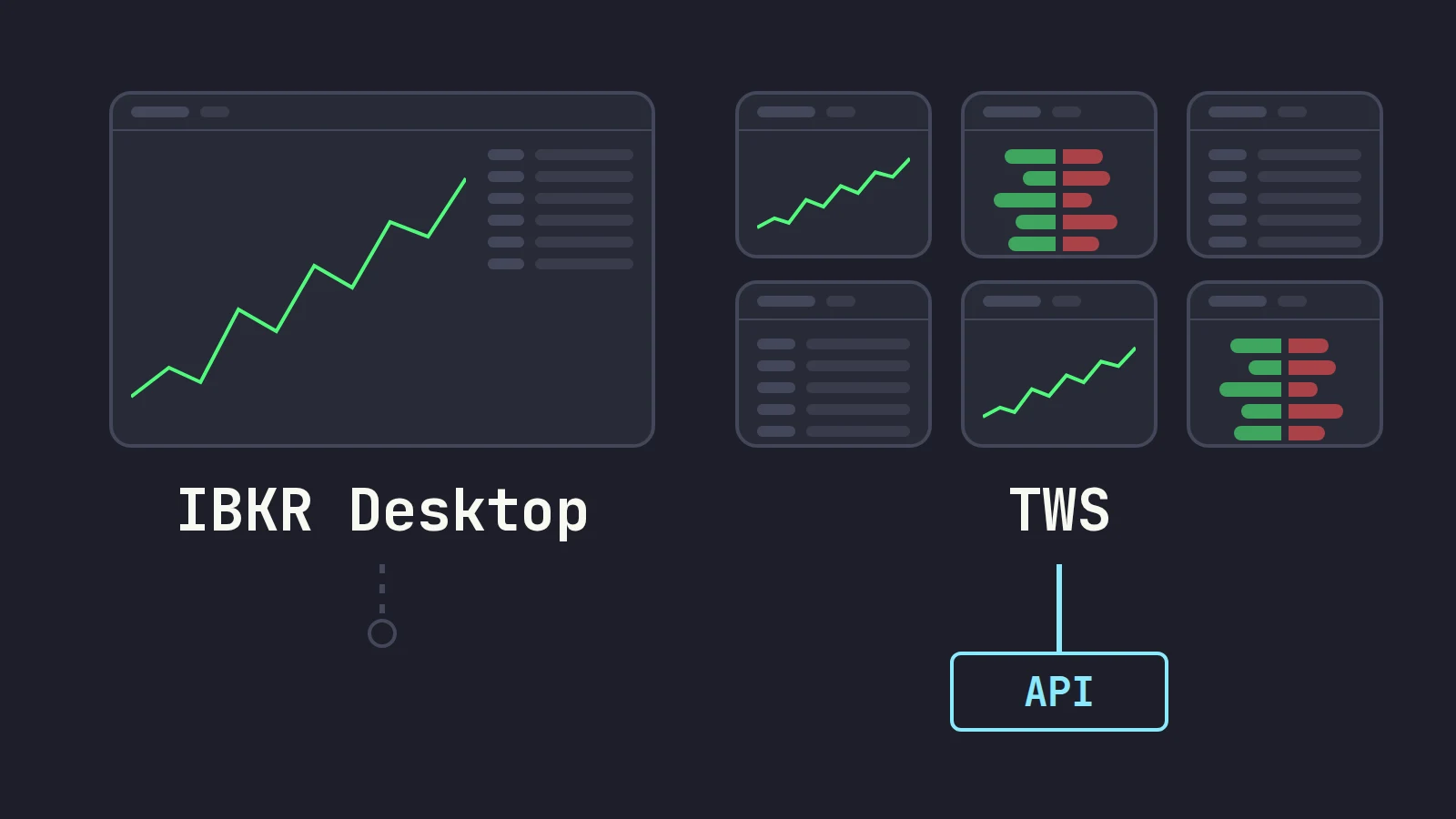
For day trading, IBKR Desktop vs TWS comes down to two things: hotkeys and the API. TWS has the deeper hotkey system and is, with IB Gateway, the only program that serves the TWS API, so any third-party trading app needs it. IBKR Desktop is the newer, easier app: it has Level 2, time and sales and, since version 1.2, instant order sending, but IBKR still describes its hotkeys as basic. Use Desktop for investing and account work, TWS for hotkey scalping, and remember that one username can only be logged in to one of them at a time.
Interactive Brokers now ships two desktop trading programs, and the newer one is the one its website pushes first. If you day trade, the question of IBKR Desktop vs TWS is not about looks. It is about how fast a key turns into an order, whether your trading tools can connect at all, and what happens to your session when you open the other app. We build a trading cockpit on the TWS API and run both programs, so this is a practical comparison, not a feature brochure.
Product facts below were checked against IBKR's pages on October 22, 2026. Scalpel is independent and not affiliated with or endorsed by Interactive Brokers.
What IBKR Desktop is
IBKR Desktop is IBKR's second desktop platform, built to be simpler than Trader Workstation. It spent about two years in beta before IBKR announced version 1.0 on July 31, 2025. That release listed Level 2 market depth, time and sales, advanced charts and option chains, and said Desktop "now delivers the core functionality" of TWS. Version 1.2 followed on October 14, 2025 with configurable QuickTrade buttons and, in IBKR's words, keyboard and mouse actions that "now allow for instant order submission".
IBKR positions the two plainly in that release: Desktop as "the primary platform for self-directed traders and investors", TWS "for advanced and professional users". IBKR's download page offers Desktop for Apple silicon and Intel Macs, 64-bit Windows and Linux, and was on version 3.0 when we checked. Both programs are free with an IBKR account.
TWS (glossary) is the older, denser platform: Mosaic layouts, BookTrader, a large hotkey system, order presets for every product, and the API that third-party tools connect to.
IBKR Desktop vs TWS at a glance
| What matters to a day trader | IBKR Desktop | TWS |
|---|---|---|
| Learning curve | Gentle | Steep |
| Hotkeys | Basic, by IBKR's own description | Deep: per-key size, price offsets, instant transmit |
| Instant order sending | Yes, since version 1.2 | Yes, per hotkey |
| Level 2 and time and sales | Yes | Yes |
| Serves the TWS API for third-party apps | No | Yes |
| Counts as your one trading session | Yes | Yes |
| Platforms | Windows, Mac, Linux | Windows, Mac, Linux |
| Price | Free | Free |
Hotkeys: the deciding difference for day trading
Most of what separates the two for a scalper is in the keyboard.
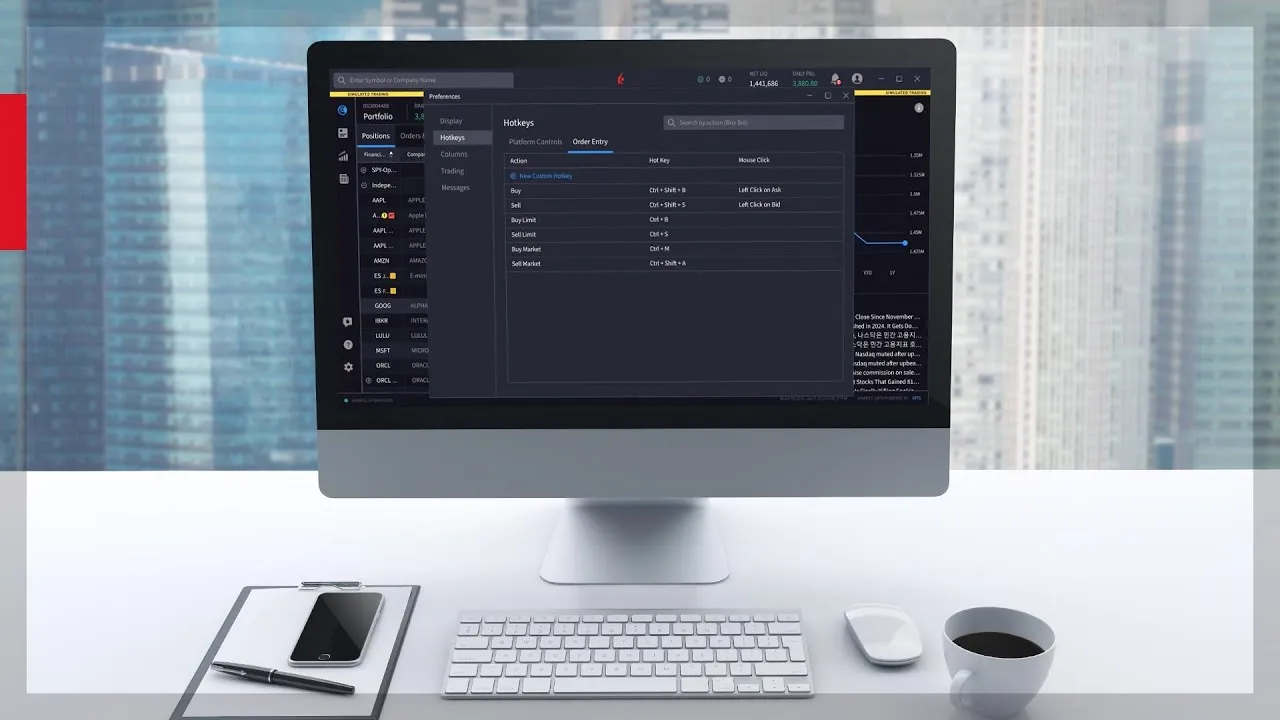
In IBKR Desktop, hotkeys live under Settings > Hotkeys, split into Platform Controls and Order Entry. IBKR's Desktop hotkeys lesson shows Ctrl+B creating a buy limit order for the selected instrument, and a New Custom Hotkey button on the Order Entry tab where you set a name, an order type, a quantity and a time in force. Keys can also be mouse actions, such as a double click on the ask.
That is enough to buy a fixed size quickly. It is not yet a scalping setup. Under that lesson, traders ask for keys that buy a percentage of buying power, sell a percentage of the position and exit in one press, and IBKR's replies say "for now, we have only basic hotkeys available" and that advanced hotkeys are in its queue.
This short IBKR video walks through the Desktop hotkey settings and a custom mouse hotkey. It predates version 1.2, so it shows the order landing in the order panel rather than transmitting at once, but the menus are the same:
In TWS, hotkeys sit in Global Configuration > Hotkeys, and each key has its own Customize tab: price off the ask or bid with an offset, a default, absolute or available size, outside regular hours, and Transmit the order instantaneously. Close Position flattens the selected stock in one key. The catch is that TWS fails quietly when one of those boxes is wrong; our TWS hotkeys for day trading setup and the IBKR hotkeys not working checklist cover both sides.
Our verdict: if your trading is a few planned entries a day at limit prices, Desktop's keys are fine. If you buy the ask and scale out in pieces within seconds, TWS is the IBKR program built for that today.
Level 2, time and sales and depth limits
Both programs show Level 2 and the tape, and both need the same market data subscriptions. The limit that bites is not the app but your account's allowance: IBKR gives every client 100 concurrent lines of market data to start, and for each 100 lines you may watch depth for one symbol, with a minimum of three and a maximum of 60. On the default allowance that is three symbols in depth at once. How the lines are counted, and how to get more, is in IBKR market data lines.
TWS adds BookTrader, a click-to-trade price ladder, and a long list of window types you can tile in Mosaic. Desktop's layouts are cleaner and easier to arrange, with multi-monitor support. For reading the book that is mostly taste. For building a dense, linked trading screen, TWS still has more parts.
The API: only TWS and IB Gateway serve it
This is the point most comparisons miss, and it decides the question for anyone who trades through another program.
IBKR's own documentation describes the TWS API as "a TCP Socket Protocol API based on connectivity to the Trader Workstation or IB Gateway" (TWS API introduction). IBKR Desktop is not on that list. Its third-party FAQ adds two conditions: platforms that connect through TWS need the connection set up in TWS first, and third-party platforms need a funded IBKR Pro account, not IBKR Lite (more in IBKR Pro vs Lite).
So if you use a charting tool, a journal that pulls fills live, or a cockpit like ours, the program running underneath must be TWS or IB Gateway, with the API switched on (enable the TWS API). Desktop cannot stand in for either. Which of those two to run is covered in IB Gateway vs TWS.
One login at a time: Desktop, TWS and IB Gateway sign each other out
IBKR says it is "not possible to login to multiple trading applications simultaneously with the same username" (logging into multiple applications). IBKR Desktop counts. Open Desktop to check an option chain while TWS or IB Gateway feeds your trading app, and the older session is closed, taking every API connection with it.
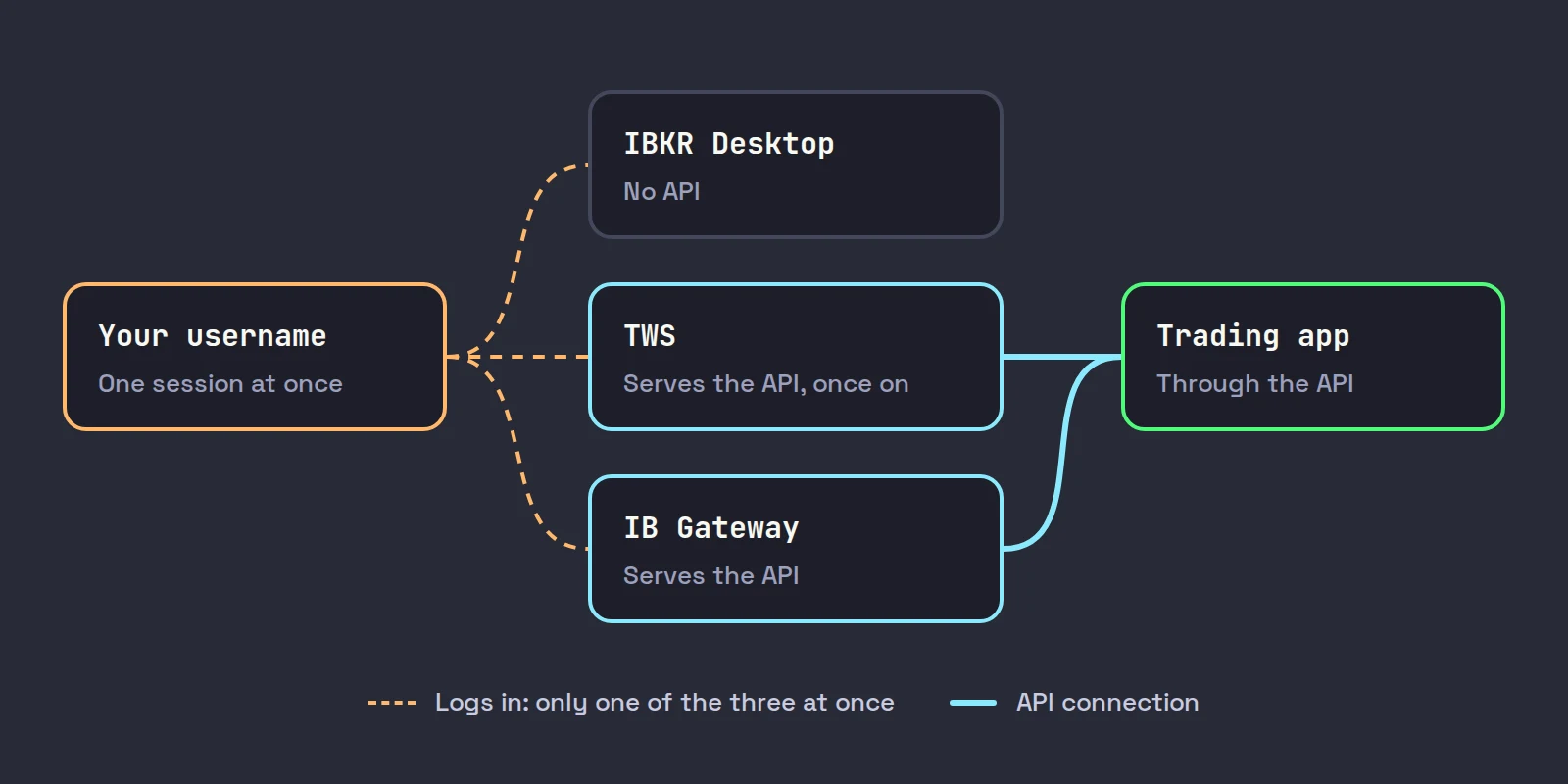
The fix is a second username on the same account, added free in Client Portal. Market data subscriptions belong to each username, so the second one pays for its own. If you only want Desktop for account work, the simpler rule is: never open it while you hold a position through another app.
Performance and the computer you need
IBKR's published TWS system requirements are 8 GB of RAM minimum and 16 GB recommended, with an Intel i5 or an M1 as the floor. The same page warns that more than 15 chart windows, or more than 500 stock positions, may need TWS's memory allocation raised to at least 2 GB. IBKR markets Desktop as streamlined and high-speed, but we have not found a published resource comparison between the two, so test on your own machine. If TWS is the slow part of your setup, TWS slow or lagging has the settings that help.
Which one should you use?
| You are | Use | Why |
|---|---|---|
| An investor or an occasional trader | IBKR Desktop | Easier to learn, everything in one window |
| New to IBKR and learning the basics | IBKR Desktop first | Less to configure before you can place a sensible order |
| A hotkey scalper in IBKR's own screens | TWS | Per-key sizing, offsets, instant transmit, Close Position |
| Trading through a third-party app | IB Gateway or TWS | Only they serve the API |
| Using Desktop and an API app together | A second username | One session per username |
For the whole setup end to end, from account to layout, see our guide to day trading on Interactive Brokers.
Where Scalpel fits
Scalpel is a keyboard-first cockpit that runs on top of your own IBKR account, and like every API program it connects to TWS or IB Gateway, never to IBKR Desktop (connect Scalpel to Interactive Brokers). It covers the part of the job where Desktop's keys stop: every trading action is one key with no confirmation dialog, entries are sized from your stop and a dollar risk, and scale-outs and flatten are single presses (hotkeys).
That makes a clean split possible. Run IB Gateway for Scalpel during the session, and keep Desktop for research and account work on a second username, or only when you are flat. If a Desktop login does take the session, Scalpel says IB connection lost and offers to switch to whatever is still running (TWS signed out).
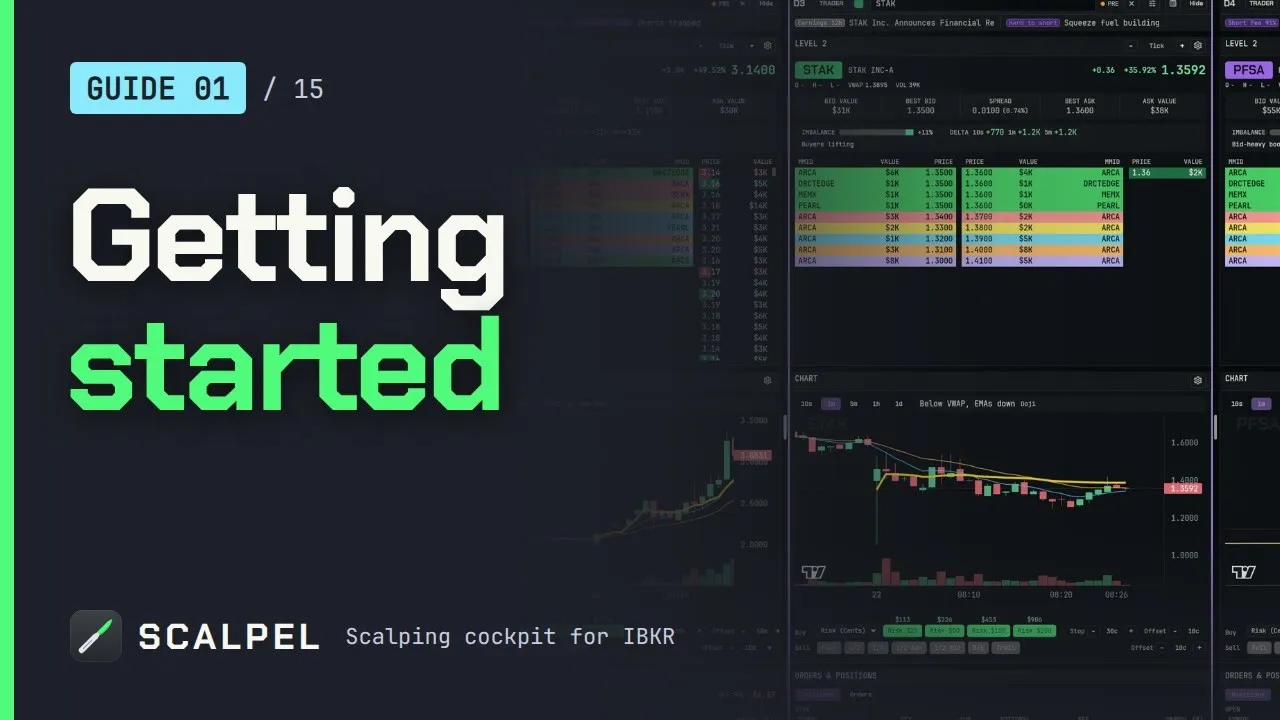
Our getting started video shows the connection and the first session:
Scalpel is long only and trades US stocks. Its stops are watched by the app, not resting at IBKR, so they only work while Scalpel runs with a live feed.
Trading carries a significant risk of loss. Nothing here is financial advice.
Questions
- Is IBKR Desktop better than TWS for day trading?
- For most active day traders, no. IBKR Desktop is easier to learn and now sends orders instantly, but IBKR describes its hotkeys as basic. TWS has per-key sizing, price offsets and instant transmit, and it is the program third-party tools connect to.
- Does IBKR Desktop support the API?
- No. IBKR documents the TWS API as connecting to Trader Workstation or IB Gateway. Third-party apps need one of those two running and logged in, with the API enabled.
- Can I run IBKR Desktop and TWS at the same time?
- Not on the same username. IBKR allows one trading session per username, so logging in to one signs the other out. A second username on the account, with its own market data subscriptions, lets you run both.
- Does IBKR Desktop have Level 2?
- Yes. Version 1.0 in July 2025 listed Level 2 market depth and time and sales. You still need the market data subscriptions for the exchanges you want, and depth is limited by your account's market data lines.
- Is IBKR Desktop free?
- Yes. IBKR Desktop and TWS are both free to download and use with an IBKR account. Market data subscriptions and commissions are charged the same way whichever program you use.
Related guides
Guide 1.4Connect Scalpel to Interactive BrokersRun TWS or IB Gateway, match the API port and watch Scalpel connect. Which program to use, the ports (7497, 7496, 4001) and what the link banner tells you.Guide 4.3Hotkeys: the defaults and how to change themEvery Scalpel hotkey and its default: buys, scale-outs, breakeven, trailing and cancel, each with a spoken confirmation. Esc's rules and how to rebind.Guide 1.5Enable the API in TWS and IB GatewayTurn on Enable ActiveX and Socket Clients in TWS or IB Gateway, set the socket port, allow 127.0.0.1 and switch off read-only API so Scalpel can trade.
Keep reading
- Day trading on Interactive Brokers: the complete setup (2026)Interactive Brokers day trading, set up end to end: 2026 margin rules, Level 2 data costs, TWS vs IB Gateway, hotkeys, Tiered vs Fixed and a checklist.
- Scalping on Interactive Brokers: can you, and how to set it upIs TWS good for scalping? IBKR's routing and fills are fine; TWS is the friction. What slows scalpers down and a step by step TWS scalping setup to fix it.
- A TWS day trading layout for scalpers: the Mosaic setupA TWS day trading setup step by step: Mosaic windows, color-linked groups, 1 and 5-minute charts, time and sales, saving the layout and settings for speed.
Practice in SIM, against the live book.A lifetime license, every update included, with a 7-day refund guarantee.Ask in DiscordGet Scalpel